PHOTO EDITING EXERCISE USING PHOTOSHOP- Right click on the following picture and "save as" mainanut.jpg to your drive. (A: for my TAFE students)
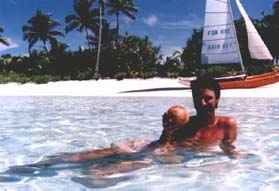 - Start Photoshop.
- File - Open - A:\mainanut.jpg
- F7 to open LAYERS palette.
- Create a new layer, either from the Layer menu at top or the arrowhead in the Layers palette.
- Working in the background layer, use selection tool to select my head.
- Paste head into new layer
- From the drop down menu go to LAYER > TRANSFORM > ROTATE the head 180 degrees and position it over the coconut in my hand.
- On the background layer, use Lasso tool to select coconut by multiple clicking around the coconut.
- Cut coconut and paste to another layer (Ctrl+X) then Ctrl+V)
- Resize (larger) coconut.
- Move coconut where head was.
- Smooth connection with smudge tool.
- In background layer change sail shadow by going to FILTERSS > RENDER > LIGHTING EFFECTS. Alter light direction by moving points in the dialogue box.
- Highlight beach with COLOUR WAND tool.
- Chang colour to red with PAINT BUCKET.
- Use rubber stamp tool to replace sky with water.
- File > Save for the Web
- Choose jpg low quality and set compression to 12
- Browse to folder where you save your images.
- Type name of file, in lower case, with a jpg extension . eg: coconuthead.jpg
HOME GRAPHICS WEBWEAVERS EMAIL 4 WEB MARKETING |